
Getting started with OPA-PA
OPA-PA is a desktop application for database performance analysis on Oracle Database (11.2 and later; most scripts are written for 19c and later, multitenant and RAC included) and PostgreSQL (13 and later). It is free, and it stays free.
1. Install
Section titled “1. Install”Download the archive for your system from opa-pa.com. Nothing else is needed: no Java, no Oracle Client, no administrator rights. The archive contains the application, this documentation (docs) and a README.txt.
| System | Install | First start |
|---|---|---|
| Windows x64 | Unpack the whole folder anywhere you can write to, e.g. C:\Tools\OPA, and run OPA.exe. |
The beta is not code-signed yet, so Windows may say Windows protected your PC: click More info, then Run anyway. If Windows blocks the files, open the zip’s Properties, tick Unblock, and unpack it again. |
| macOS 11+ | Apple silicon: OPA-macos-arm64.zip; Intel: OPA-macos-x64.zip. Unpack and drag OPA.app to Applications. |
The beta is not notarized yet, so macOS blocks the first start. Open it once, then System Settings → Privacy & Security → Open Anyway; or in Terminal: xattr -dr com.apple.quarantine /Applications/OPA.app. |
| Linux x64 | tar xzf OPA-…-linux-x64.tar.gz -C ~/opt and run ~/opt/OPA/bin/OPA. For a menu entry and the dock icon, run ~/opt/OPA/install-desktop-entry.sh once. |
Needs a graphical desktop and GTK 3. On a minimal system: Ubuntu sudo apt install libgtk-3-0 libxtst6 libgl1 fonts-dejavu-core; Oracle Linux sudo dnf install gtk3 libXtst mesa-libGL dejavu-sans-fonts. Over SSH use ssh -X or a remote desktop. |
To remove OPA-PA, delete its folder (OPA.app on macOS). Your settings stay in the settings folder (§11).
2. First start
Section titled “2. First start”- Accept the public beta agreement (also in
BETA-AGREEMENT.txt). - The connection dialog opens (§3). Without a database you can look around in demo mode: start the application with
--mock(for exampleOPA.exe --mock); every view then shows sample data.
3. Connect
Section titled “3. Connect”One window works with one database. To work with several databases at once, start OPA-PA several times.
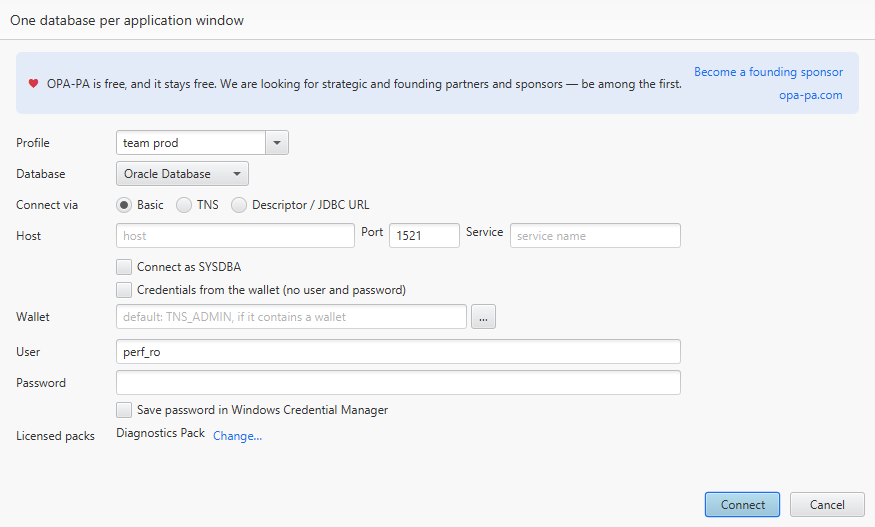
Profile. Type a name to save the connection as a profile, or pick a saved one. Database chooses the engine (Oracle or PostgreSQL); the form below follows it.
Oracle
- Connect via: Basic (host, port, service name), TNS (an alias from
tnsnames.ora: OPA-PA findsTNS_ADMINfrom the environment,ORACLE_HOME, the Windows registry and Oracle clients onPATH, and followsIFILE), or Descriptor / JDBC URL (pasted as is). - Wallet: a wallet folder, or Import wallet… for a wallet zip (Autonomous Database). Credentials from the wallet logs on with the wallet’s stored credentials, without user and password.
- Connect as SYSDBA when you need it.
- Privileges: a user with
SELECT ANY DICTIONARY(orSELECT_CATALOG_ROLE) can run almost every script. Actions (kill session, plan management) need their own privileges.
PostgreSQL
- Host, port, database; SSL mode and a root certificate when the server requires it.
- Privileges: a login that is a member of
pg_monitor. For statement statistics the database needs thepg_stat_statementsextension;pg_wait_sampling,pg_stat_kcacheandpgstattupleadd more scripts when they are installed (OPA-PA detects them).
User and password. Save password keeps it in your system’s credential store: Windows Credential Manager, macOS Keychain, or the Linux keyring through secret-tool (package libsecret-tools on Ubuntu, libsecret on Oracle Linux). Passwords are never written to files.
Licensed packs (Oracle): see §5.
After connecting, the status bar shows the database, its version and the confirmed licences. If the connection is lost, views say so and reconnect when you refresh.
4. The main window
Section titled “4. The main window”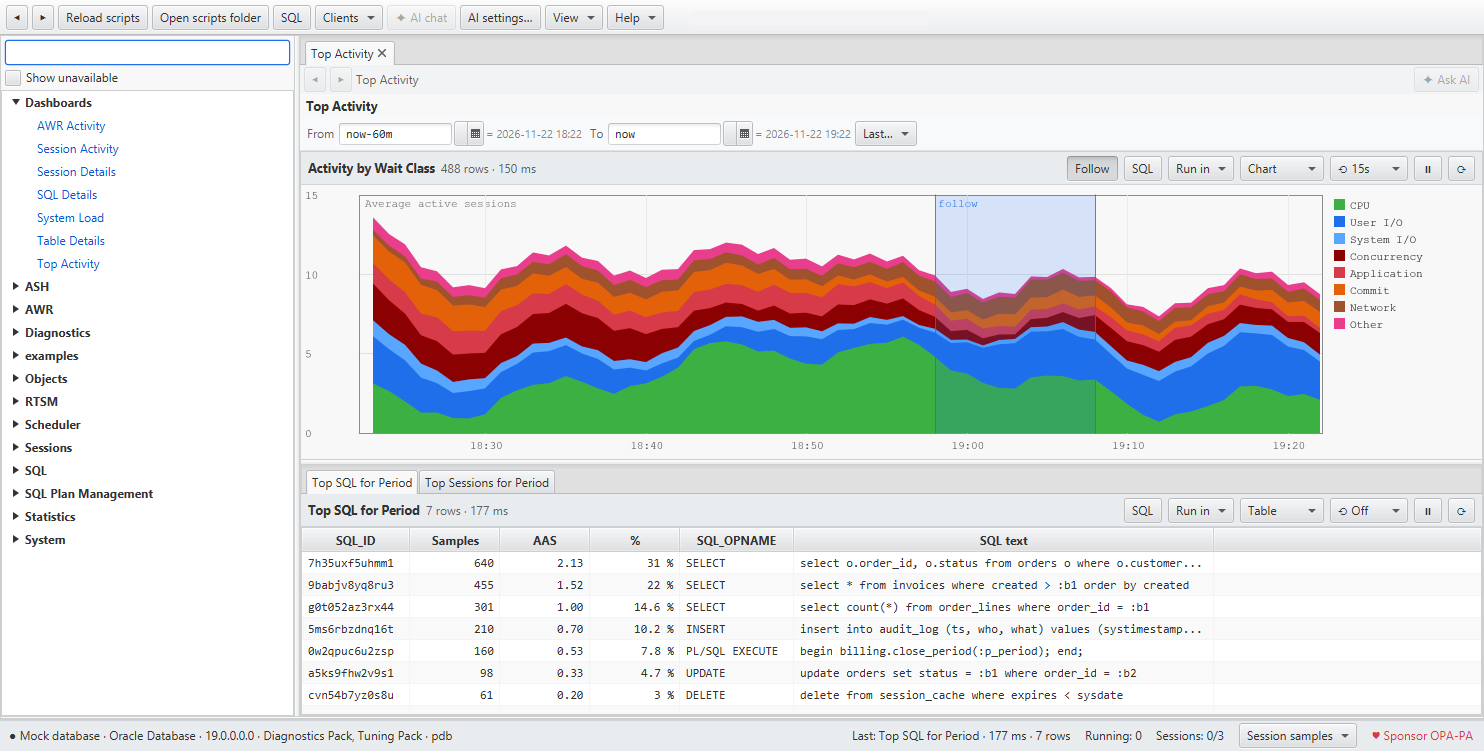
- Catalog (left): every script for the connected database, by folder. Dashboards come first. Type in the filter field to find a script by name. Show unavailable also lists the scripts this database cannot run (version, licence, missing extension), greyed, with the reason.
- Tabs (right): each script or dashboard opens in a tab. The inputs bar above a result holds the script’s parameters: change one and press Enter. Time periods have presets (Last…) and accept expressions such as
now-15m. - Dashboards combine views. In Top Activity, click a bar or drag over a period on the chart: the tables below show the top SQL and sessions for that selection. Follow keeps the selected period moving with time on every refresh.
- Drill-down. Double-click a row to open the most relevant script for it (a SQL id opens SQL Details). Right-click for all the scripts that row can open, grouped by category; on a chart, right-click inside a selected period for the scripts that take a period. Ctrl+double-click (Cmd on macOS) opens in a new window. The back and forward arrows move through what you opened.
- Refresh. Each view has a refresh selector (Off, 5 s, 15 s…), pause and a refresh button. Hidden tabs do not refresh.
- Results. Switch between table, record, chart and text views without running the query again. Select cells or rows and copy them (Ctrl+C, or Ctrl+Shift+C with the header; right-click → Copy as: CSV, JSON, SQL INSERT, an
INlist…). Some results are trees (blocking chains): use ▾/▸, or right-click → Expand all.

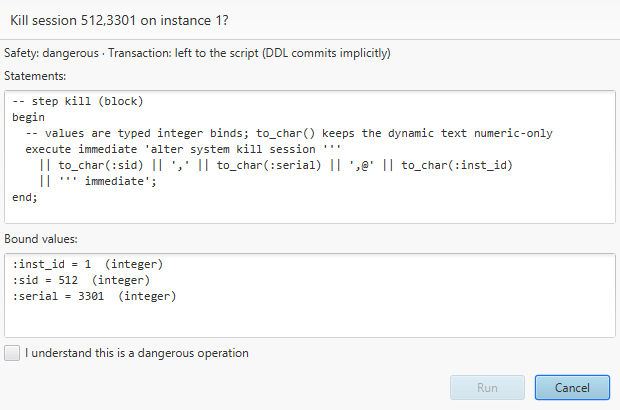
- Actions such as Kill session or pinning a plan always show the exact statement and values and ask for confirmation. They never run on a double-click.
- Diagnostics (bottom): problems with scripts, with file and line.
Your own scripts and dashboards: see the script format guide.
5. Oracle licences
Section titled “5. Oracle licences”Some Oracle features are paid options: Diagnostics Pack (ASH, AWR) and Tuning Pack (SQL Monitor, SQL Tuning Advisor). Querying their views without a licence is a licence violation, even if the database lets you.
- In the connection dialog, Licensed packs → Change… says which packs this database is licensed for. OPA-PA suggests what the database’s configuration says (
control_management_pack_access), but configuration is not a licence: confirm only what you have bought. The choice is kept with the profile. - OPA-PA never runs a script that needs a pack you have not confirmed. Such scripts are hidden in the catalog and never offered in drill-down.
- Many scripts have variants: with the Diagnostics Pack Top Activity reads ASH; without it, OPA-PA’s own session samples (§6). Dashboards and drill-down work the same either way.
- Standard Edition has no packs: confirm none.
6. Local session sampling
Section titled “6. Local session sampling”Where the database keeps no activity history (PostgreSQL), or keeps one you may not use (Oracle without the Diagnostics Pack, Standard Edition), OPA-PA samples active sessions itself, once a second, on one extra session, while it is connected. The samples go to a local file per database (SQLite), and Top Activity and the activity scripts read them.
- The status bar (bottom right) shows the state, interval and size. Its menu: start/stop, interval, Sample automatically after connecting, Export samples…, Open samples file…, Open samples folder.
- Samples are kept 7 days (older ones are thinned after a day). The file survives a crash.
- Offline analysis. Export samples… writes a period (for example the incident’s hour) to a file. Anyone with OPA-PA can open it with Open samples file…, without a database: the activity scripts and dashboards show that period.
- The history starts when you connect: OPA-PA cannot show what happened before it was sampling.
7. SQL worksheet
Section titled “7. SQL worksheet”SQL in the toolbar (Ctrl+Shift+N) opens a worksheet for a quick query or PL/SQL / DO block on its own session.
- Ctrl+Enter runs the selection, or the whole text, as one statement.
:namebinds are asked for in a dialog. - Nothing is committed unless you press Commit; uncommitted changes shows an open transaction, and closing the tab asks what to do with it.
- A query fetches its first Fetch size rows (300 by default); Fetch next and Fetch all get more.
- History brings back earlier statements. SQL in a view’s toolbar opens that view’s statements in a worksheet, with the values filled in.
8. Command-line clients
Section titled “8. Command-line clients”Clients in the toolbar opens SQL*Plus, SQLcl or psql in a terminal window, already logged on to the current connection; Run in… in a view or worksheet runs its statements there. View → External tools… sets where each client is (or finds it) and the folder it starts in (where your own @scripts are). The password reaches the client through a short-lived private file, never the command line.
9. AI assistant
Section titled “9. AI assistant”AI settings… in the toolbar:
- Provider: Anthropic, OpenAI, any OpenAI-compatible server (LM Studio, vLLM, OpenRouter…) or Ollama (local). Model: type a model name or Load list. The API key is kept in your system’s credential store. Test checks the setup.
- Data policy: Local only (only local models; nothing leaves your computer), Redacted (default: literals in SQL text and plans, and columns marked sensitive, are masked before anything is sent), Full.
- Free SQL (off by default): lets the assistant write its own queries; you approve each statement; it runs on its own session and is always rolled back, optionally as another (read-only) user (Run as).
Then ✦ Ask AI in a tab (or ✦ AI chat in the toolbar) opens a chat about that page: the assistant sees its inputs, selection and results, and can run OPA-PA’s read-only scripts to look further (you see every call). What was sent… shows the exact last request; Stop cancels. The assistant never runs actions.
10. MCP server: OPA-PA in your AI client
Section titled “10. MCP server: OPA-PA in your AI client”If you use Claude Code, Claude Desktop, Codex, OpenCode or another MCP client, it can use OPA-PA’s scripts on your current connection.
- AI settings… → Let AI clients … use OPA-PA’s scripts. The server listens on your computer only (
127.0.0.1, port in the settings) and requires a token. - Copy setup for: Claude Code, Claude Desktop, Codex or OpenCode copies the ready configuration (with the token) to the clipboard; paste it into the client’s settings as its button explains.
- The client gets the tools
list_scripts,describe_script,run_scriptandcurrent_view(what you are looking at in OPA-PA). The data policy applies; actions are never available.
While the server is on, the status bar shows it, with stop, port and New token… (which disconnects existing clients).
11. Settings and files
Section titled “11. Settings and files”| What | Windows | macOS | Linux |
|---|---|---|---|
| Settings, connections, your scripts | %APPDATA%\OPA |
~/Library/Application Support/OPA |
~/.config/opa |
| Logs and session samples | %LOCALAPPDATA%\OPA |
~/Library/Application Support/OPA |
~/.local/share/opa |
Help → About OPA-PA shows the exact folders with links. Other useful places:
- View → Display settings…: interface text size, data font. Ctrl+Plus / Ctrl+Minus / Ctrl+0 (Cmd on macOS) change the text size in any window.
- Help → Open shipped scripts: a read-only copy of every script that comes with OPA-PA, to read and learn from.
- Help → User guide: this documentation.
12. Updates
Section titled “12. Updates”Download a newer build from opa-pa.com and replace the folder (or OPA.app); your settings, profiles, saved passwords, scripts and samples stay. A beta build stops starting after the date shown in Help → About; newer builds, free as well, are on the site.
13. Problems and feedback
Section titled “13. Problems and feedback”- Help → Send feedback… writes to beta@opa-pa.com. Attach the latest
opa.log(Help → Open logs folder), a description and a screenshot; remove anything confidential first. - If OPA-PA does not start at all: on Windows run
OPA-console.exe, on macOS or Linux run it from a terminal; it prints the log. - A script that fails shows the database’s error in its tab; problems in your own scripts are listed in Diagnostics.
Support OPA-PA. We are looking for strategic and founding partners and sponsors: sponsors@opa-pa.com or Help → Become a founding sponsor….